Share or export your iMovie video
Share your iMovie video with friends using email or text, post to social media or other websites, or export to watch on other devices.
When you share a video, you send it to others in a format that allows them to view the video without needing iMovie. When you export an iMovie project, you convert the project into a format that can make your video compatible with different devices, platforms, or websites.
Share or export your video on iPhone or iPad
Share your video from your iPhone or iPad using email or text message, share your project on social media or other websites, or export it to watch on another device.
Share your video using email or text message
You can send a finished video to others in an email with the Mail app or in a text message with the Messages app.
In the Projects browser, tap the iMovie project that you want to share. If you’re editing the project, tap Done in the upper-left corner.
Tap the Share button
 , then tap Messages or Mail.
Complete the message or email that was created, then tap Send.
If you get an alert that file is too large to send, you can reduce the size of the video file or send it another way:
Cancel your current message or email, then tap the Share button again.
Tap Options, then choose a lower resolution. A lower resolution might affect the quality of your video.
If you want to maintain the highest possible resolution for your video, consider sending an iCloud link to the video or using Mail Drop.
If you don't use the Mac Mail app, choose Save to Files when you export your video. You can then attach the video to an email in your preferred email app.
Share your video on the web
To share your video on social media or other websites, save your video to your photo library, then upload it.
In the Projects browser, tap the iMovie project that you want to share, then tap the Share button
. If you want to change the resolution of your video, tap Options under the title of the video, then choose a resolution:
1080p provides the best video quality for most social media sites.
Lower resolutions like 720p HD produce smaller files that upload faster if internet speed is an issue.
Tap Save Video to save the video in the photo library on your device.
Do any of the following depending on where you want to upload your video:
Open the Photos app, select your exported video in your photo library, then tap Share. If you have an app for the service you want to upload the video to, swipe the list of apps, then select the app.
Open the app for the service you want to use, then upload the video from within the app. If you're prompted to grant the app access to your photo library, tap an option.
Visit the website that you want to upload the video to, then upload the video from the website.
Export your video to watch on another device
From the Projects browser, tap the video you want to share. If you’re editing the project, tap Done in the upper-left corner.
Tap the Share button
.To change the resolution or format of your video, tap Options, then tap Done when you’ve set your options.
Choose where you want to export your movie:
To use AirDrop, tap AirDrop, then tap your profile picture at the top of the screen.
To export the video to your photo library, tap Save Video. If you have iCloud Photos enabled, you can access the video from all Apple devices signed into the same iCloud account.
To save your video to iCloud Drive, to a folder on your device, or to another third-party storage service you’ve enabled in the Files app, tap Save to Files, choose a location, then tap Save.
You can export your iMovie video as an MP4 so you can upload the video to websites or open it in other apps that don't support MOV files.
Share or export your iMovie video on Mac
You can email your video directly from iMovie for Mac. To add the video file to your photo library, in another location on your Mac, in iCloud, or in another cloud storage service, save the video as a video file. You can also export your video as an MP4 so you can upload it to websites or open it in other apps that don't support MOV files.
Email your video from iMovie
If you want to email the video using another email client or other service, you should save the video as a file.
From the Projects browser, select the iMovie project you want to send, click the More button
 , then choose Share Project. If you’re editing a project, click the Share button.
Click Email.
Click Share. If the video exceeds the recommended limit (usually 10 MB), you’ll see a warning on the share screen.
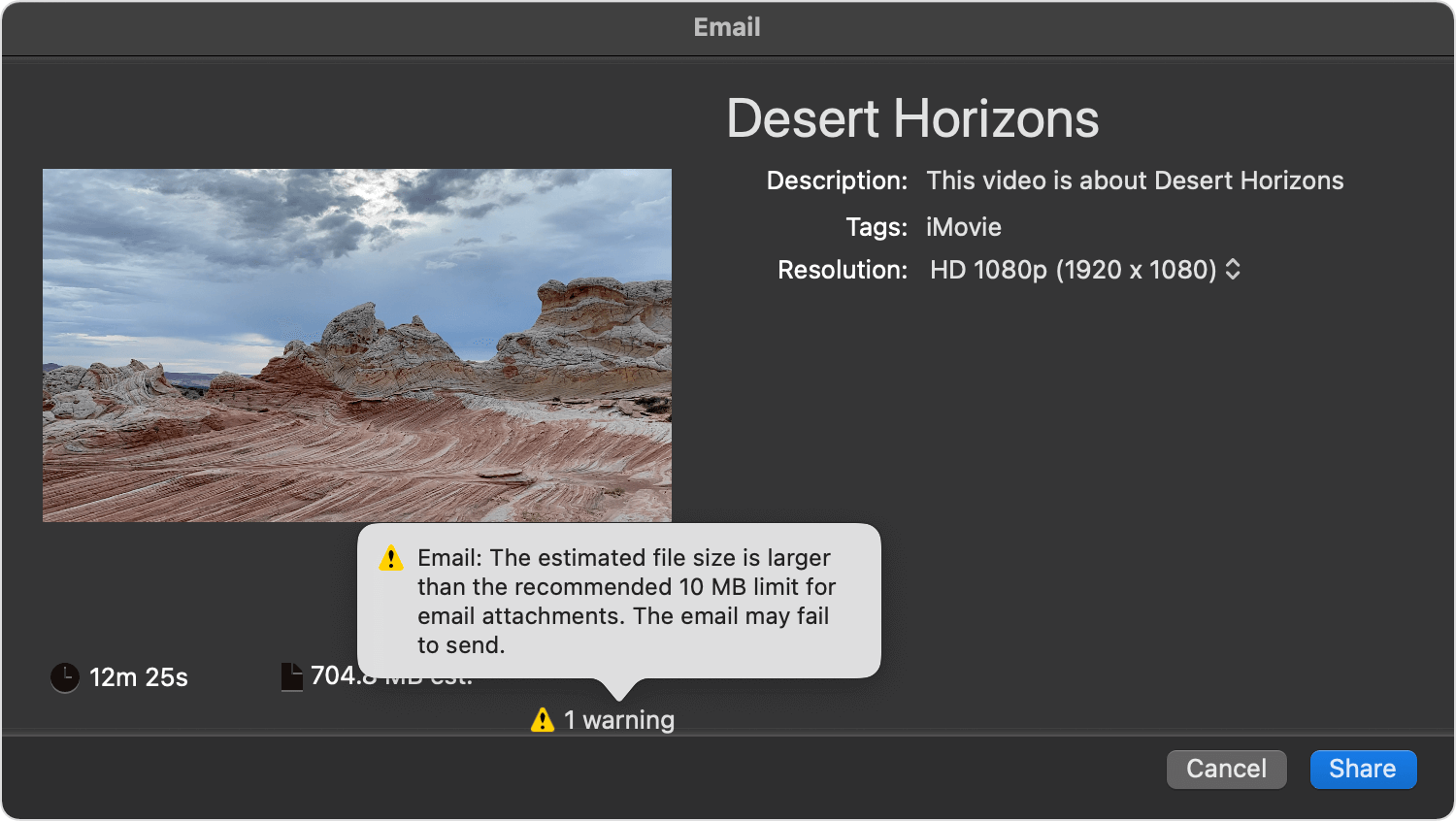
Click the Resolution pop-up menu, choose a resolution that reduces the video file to a size below 10 MB (or below whatever the limit is for your email service).
Click Share. Once iMovie has exported the video to email, you’ll see a notification.
Complete the email that was created, then click Send.
Save the video as a file
From the Projects browser, select the iMovie project you want to send, click the More button
, then choose Share Project. If you’re editing a project, click the Share button. Click File.
Click the Resolution pop-up menu and choose a size for your video. The default resolution is based on the resolution of the media included in your video, but you can choose other resolutions depending on your needs:
To produce a smaller file that uploads to the web more quickly, choose a lower resolution .
To produce a larger file (suitable for viewing on a Mac or on a high-definition television through Apple TV, for example), choose a higher resolution .
Choose a location to save the video file, then click Save.
To add the movie to your photo library, drag the exported movie file into the Photos app. If you have iCloud Photos enabled, you can access the video from all Apple devices signed into the same Apple account.
Share your movie on the web
iMovie provides optimized settings for sharing to websites like YouTube and Facebook.
With your project open in iMovie, click the Share button
.Click YouTube & Facebook.
Choose a location to save the video file, then click Save.
In a web browser, visit the website where you want to share your video, then upload the video file.
Export your video as an MP4 file
If you want to share your video with devices, apps, or websites that don't support MOV files, you can export your iMovie project as an MP4 file on Mac.
To export your iMovie project on your iPhone or iPad as an MP4 file on iPhone or iPad, you must first import the iMovie project created on iPhone or iPad into iMovie on Mac.
In iMovie on your Mac, open your iMovie project, click the Share button
, then choose Export File.Choose any of the following options in the export window:
Click the Quality pop-up menu and choose Medium or Low.
Click the Resolution pop-up menu and choose 720 or 540.
To adjust how long iMovie takes to convert the file, choose an option from the Compress pop-up menu.
Click Next, choose a location for the exported MP4 file, then click Save.
Make changes to your video after sharing
If you want to further edit your video, open the saved project in iMovie, make your changes, then share it again when you’re ready. If you want to just trim the video or change the speed of the video, you can edit the video with the Photos app on your Mac, iPhone, iPad, or Apple Vision Pro.